

5 Best Linux Distros for Old Laptops: Save Money and Reduce E-Waste in 2026
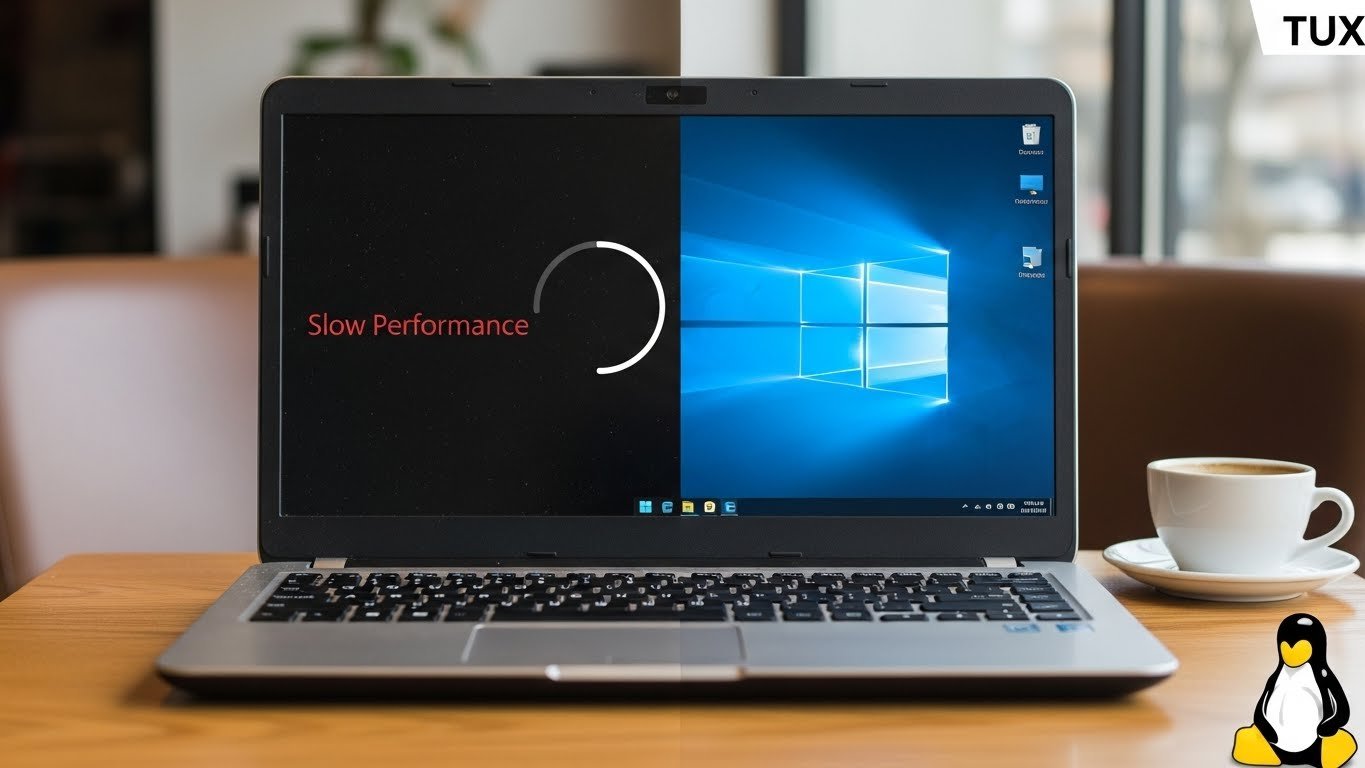
It is a scenario almost everyone has faced: you open your trusty laptop—the one that served you well for five or six years—and you wait. You wait for the login screen. You wait for the browser to open. You wait for a simple document to load. The fans spin loudly, the battery drains in an hour, and the operating system feels like it is moving through molasses.
Naturally, your first instinct is to check the price of a new MacBook or a modern Windows Ultrabook. But before you spend hundreds or even thousands of dollars, consider this: is your hardware actually broken, or is the software just too heavy?
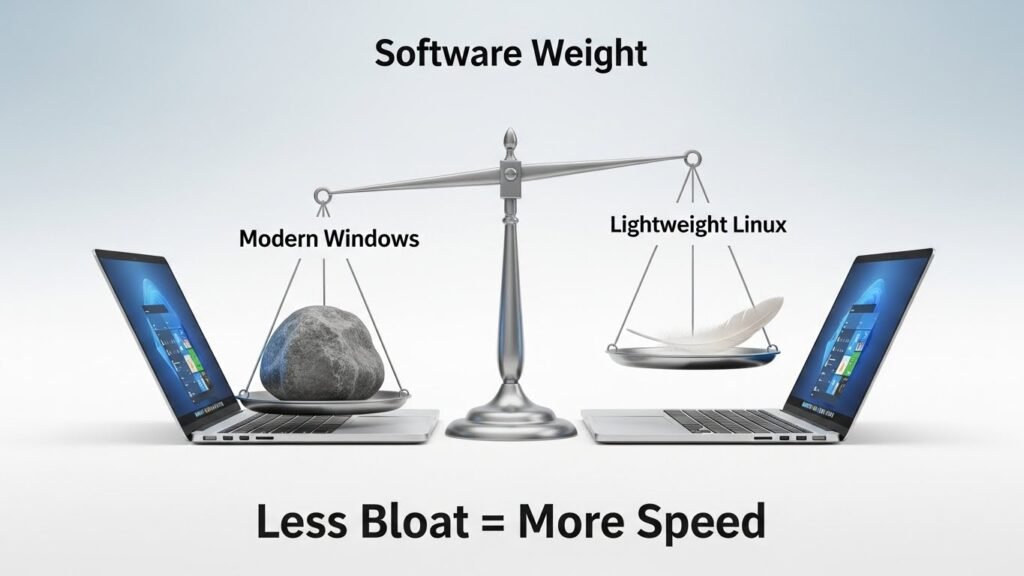
In 2026, the answer is almost always the software. Modern operating systems like Windows 11 are resource-intensive, requiring high-speed processors and large amounts of RAM to run in the background. Your older hardware isn’t “dead”; it is just suffocating under the weight of bloatware.
This is where Linux distros for old laptops come in. By replacing your heavy operating system with a lightweight Linux distribution, you can make a ten-year-old computer run faster than the day you bought it. Not only does this save you money, but it also prevents perfectly functional electronics from ending up in a landfill.
With Windows 10 support officially ending in late 2025, keeping an old machine running Windows is now a security risk. Switching to Linux is the smartest, safest, and most eco-friendly move you can make.
Why Linux is the Perfect Solution for Aging Hardware
If you have never used Linux, the word might conjure images of hackers typing green code into a black screen. While that side of Linux exists, modern “distros” (distributions) are incredibly user-friendly.
Reduced System Overhead
Windows runs dozens of background telemetry processes, updates, and virus scans that eat up your CPU cycles. Lightweight Linux distros are designed to do the opposite. They treat your system resources with respect, often using less than 500MB of RAM at idle, whereas Windows might use 4GB to sit there.
Enhanced Security
Viruses and malware targeting Linux are rare compared to Windows. While no system is immune, Linux’s architecture makes it much harder for malicious software to install itself without your explicit permission. For an older laptop that kids or elderly relatives might use, this safety net is invaluable.
It Is Completely Free
There are no license keys, no subscription models, and no “Pro” versions to buy. The operating system and thousands of applications are free and open-source.
What Makes a Distro “Lightweight”?
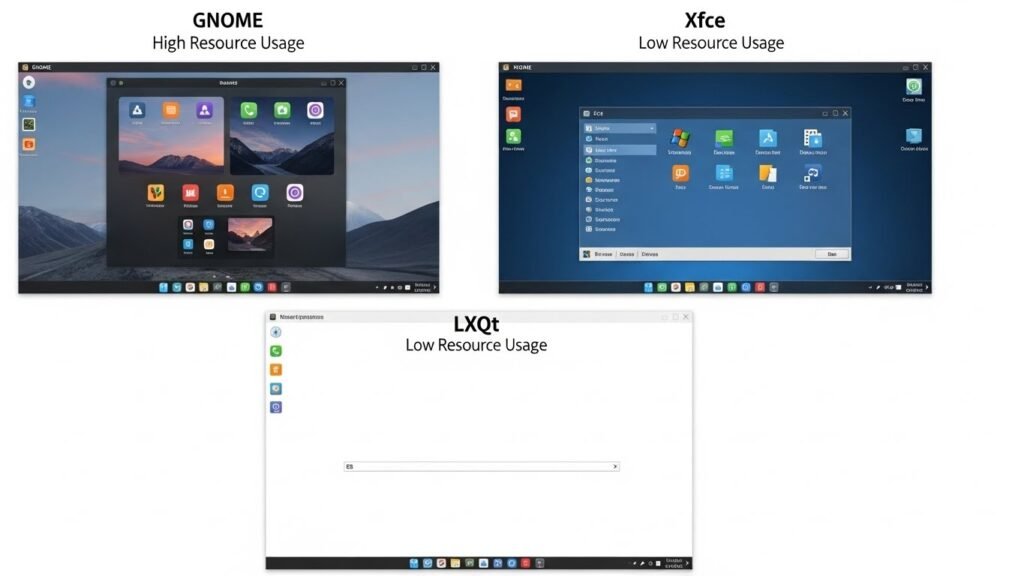
To understand why these specific operating systems work so well, you need to understand the “Desktop Environment” (DE). The DE is what you see on the screen—the taskbar, the windows, the icons.
- Heavy DEs (Avoid these for old hardware): GNOME, KDE Plasma (mostly). These look fancy with animations and blur effects, but require modern graphics cards.
- Light DEs (Look for these): Xfce, LXQt, MATE. These prioritize function over form, stripping away heavy animations to ensure instant response times.
Top 5 Linux Distros for Old Laptops
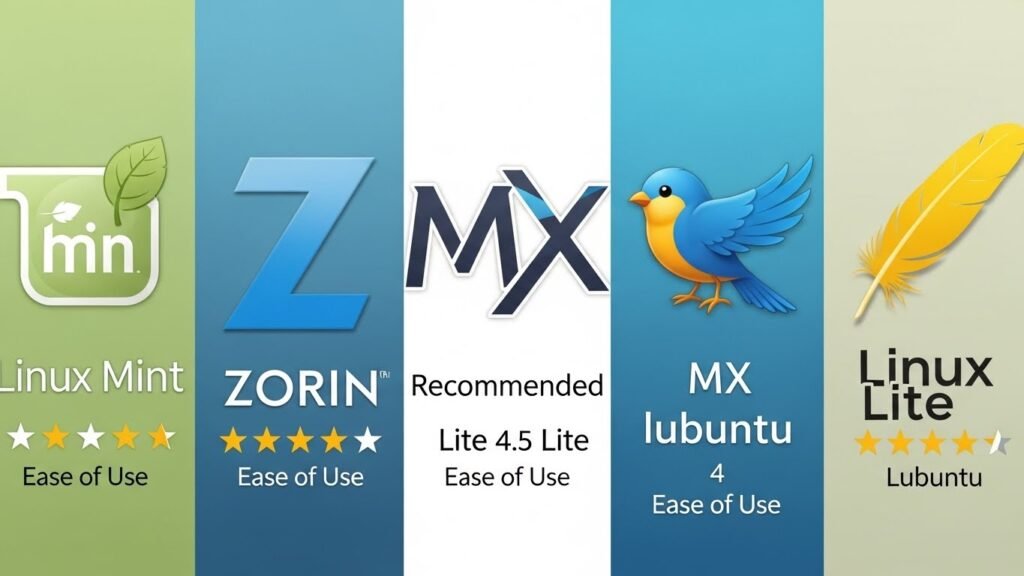
Here are the best choices for 2026, ranked by a balance of ease of use and performance.
1. Linux Mint (Xfce Edition)
- Best For: The absolute beginner migrating from Windows.
- Minimum Specs: 2GB RAM, Dual-Core Processor.
If you want an experience that feels almost exactly like Windows 7 or XP, Linux Mint is the gold standard. It is arguably the most popular distribution for home users. While the standard “Cinnamon” edition is beautiful, you should choose the “Xfce Edition” for older hardware.
It comes pre-installed with everything you need: a web browser (Firefox), a media player, and an office suite (LibreOffice). It recognizes printers and Wi-Fi drivers better than almost any other distro. The learning curve is practically non-existent; there is a “Start” menu in the bottom left, a clock in the bottom right, and Windows behaves exactly as you expect.
2. Zorin OS Lite
- Best For: Those who care about aesthetics.
- Minimum Specs: 1GB RAM, 1GHz Single Core Processor.
Just because a computer is old doesn’t mean the software has to look ugly. Zorin OS Lite is explicitly engineered to look modern and sleek while running on hardware up to 15 years old.
Zorin offers a “Zorin Appearance” tool that lets you change the desktop layout with a single click to resemble Windows or macOS. The “Lite” version uses the Xfce desktop environment but styles it so heavily that it looks premium. It is a fantastic choice if you want to revive a laptop for a student or a creative professional who values design.
3. MX Linux
- Best For: Mid-range hardware and stability.
- Minimum Specs: 2GB RAM, Modernish Processor (last 10 years).
MX Linux has consistently been the #1 downloaded distro on DistroWatch for years. Why? Because it is a workhorse. It is slightly heavier than the others on this list, but it offers a massive set of “MX Tools” that make managing the system incredibly easy.
It creates a perfect balance between performance and features. It uses Xfce by default but includes a highly efficient custom panel. If your laptop is from roughly 2015-2018 (old, but not ancient), MX Linux will likely run smoother than anything else.
4. Lubuntu
- Best For: Ancient hardware (The “Potato” PC).
- Minimum Specs: 512MB RAM (1GB recommended), Pentium 4 or newer.
Lubuntu is the nuclear option. If you have a laptop that struggles to open a text file, Lubuntu is your best bet. It uses the LXQt desktop environment, which strips away absolutely everything non-essential.
It does not have transparent windows. It does not have fading animations. It is brutalist and functional. Because it is based on Ubuntu, you still get access to the massive library of Ubuntu software, but the core system is featherlight. This is the ideal OS for a garage PC, a kitchen recipe browser, or a donation computer.
5. Linux Lite
- Best For: A “Just Works” transition from Windows.
- Minimum Specs: 768 MB RAM, 1 GHz Processor.
As the name implies, Linux Lite is designed to be simple. The creators specifically target Windows users who are tired of forced updates and sluggish performance.
The interface is familiar and clean. What sets Linux Lite apart is its “Lite Welcome” screen, which guides you through installing updates, drivers, and language support immediately after installation. It holds your hand through the setup process more than most other distros, making it less intimidating for non-techies.
How to Install Linux: A Quick Overview
You might be thinking, “This sounds great, but how do I actually get it onto the laptop?” The process is easier than you think. You do not need to be a coder.
Step 1: Download the ISO
Go to the official website of the distro you chose (e.g., linuxmint.com) and download the “ISO” file. This is the operating system disc image.
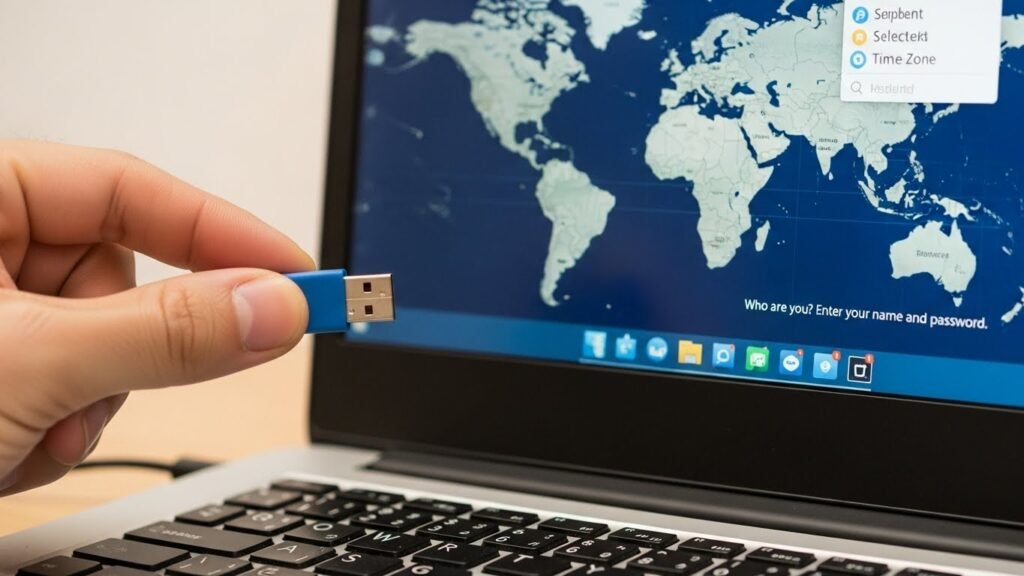
Step 2: Create a Bootable USB
You need a USB flash drive (at least 8GB). Download a free tool called Rufus (if you are currently on Windows) or BalenaEtcher (Mac/Linux).
- Insert your USB drive.
- Open Rufus/Etcher.
- Select the ISO file you downloaded.
- Click “Start” or “Flash.”
Warning: This will erase everything on the USB drive.
Step 3: Boot from USB
Plug the USB into your old laptop. Turn it on and immediately tap the “Boot Menu” key. This key varies by manufacturer:
- Dell: F12
- HP: F9 or Esc
- Lenovo: F12 or Enter
- Acer: F12
Select your USB drive from the list. The laptop will load the Linux system.
Step 4: Try Before You Install
This is the magic of Linux. You can run the entire operating system from the USB stick without touching your hard drive. Connect to Wi-Fi, browse the web, and check if your sound works. If you like it, click the “Install” icon on the desktop to permanently replace Windows.
Post-Installation Tips
Once you have successfully revived your old laptop with one of these Linux distros, here are a few tips to keep it running smoothly.
Run the Update Manager
Just like Windows, Linux needs updates. However, Linux updates generally happen all at once (system and apps together) and rarely require a forced reboot. Run the “Update Manager” immediately after installation.
Install Lightweight Apps
Don’t weigh down your light system with heavy apps.
- Instead of Adobe Reader, use the built-in PDF viewer.
- Instead of Microsoft Outlook, use Thunderbird or webmail.
- Instead of Photoshop, try GIMP (or Photopea in the browser).
Explore the “Software Center”
Linux doesn’t use .exe files in the same way Windows does. Instead, it has a “Software Center” or “Package Manager”—think of it like an App Store on your phone. It is the safest way to find and install programs.
Conclusion
Throwing away a laptop just because it struggles to run the latest version of Windows is a waste of money and resources. The hardware inside that machine is likely still capable of browsing the web, streaming video, and editing documents—it just needs the right environment.
By installing a lightweight Linux distro like Mint, Zorin, or Lubuntu, you are giving that device a second life. You are stepping out of the cycle of planned obsolescence and taking control of your technology. So, find that old laptop in your drawer, grab a USB stick, and start your Linux journey today. Your wallet (and the planet) will thank you.