
Mechanical Keyboards 101: The Ultimate Productivity Tool for Programmers and IT Pros
If you work in Information Technology, you likely spend between 8 and 12 hours a day sitting in front of a computer. You are meticulous about your monitor resolution, you obsess over your PC’s processor speed, and you carefully select your software tools. Yet, many IT professionals neglect entirely the one piece of hardware they physically touch more than anything else: the keyboard.
Using a standard, mushy membrane keyboard—the cheap plastic rectangle that came free with your computer—is like a professional chef trying to cook a gourmet meal with a dull plastic knife. It works, but it is miserable, inefficient, and potentially damaging to your health.
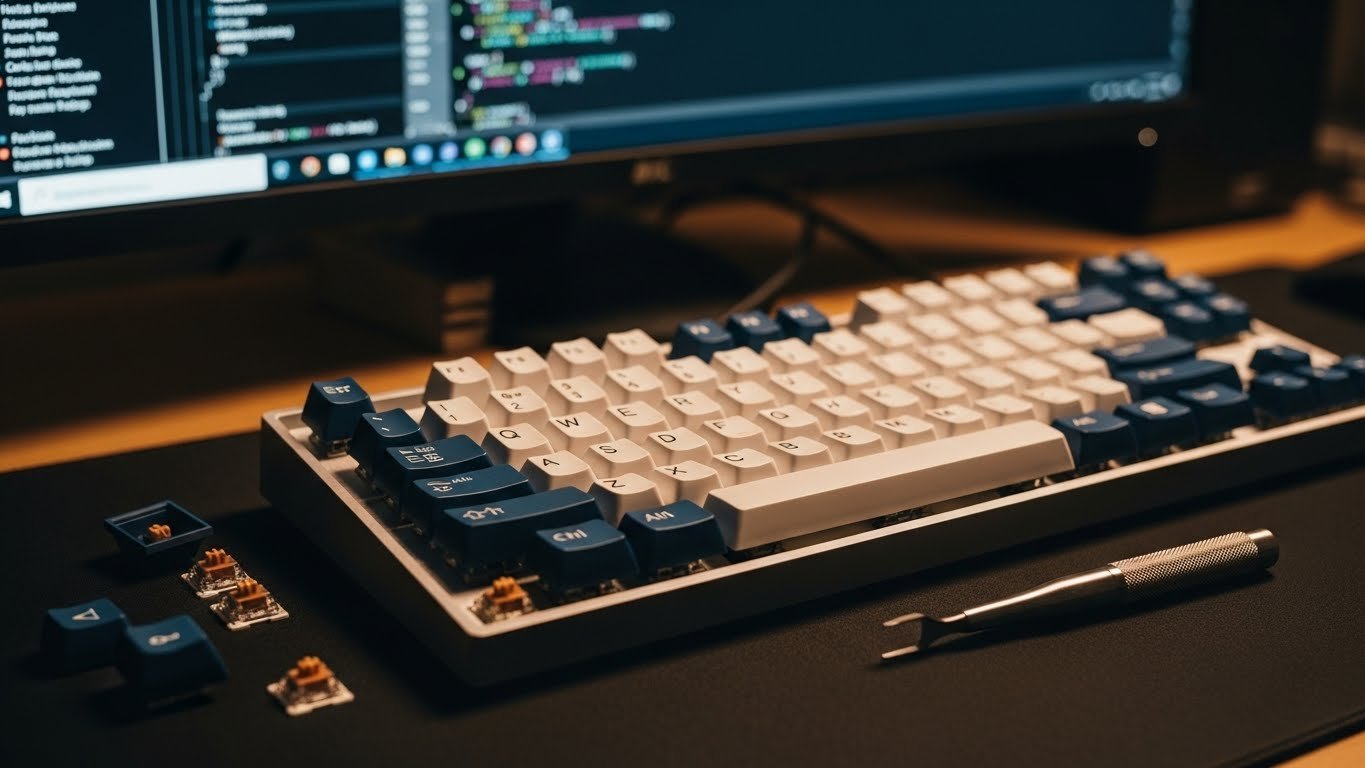
Enter the world of mechanical keyboards. Once a niche hobby for gamers, these devices have become essential tools for coders, sysadmins, and writers. They offer tactile feedback, durability, and a level of customization that turns typing from a chore into a satisfying rhythmic experience.
In this guide, we will break down exactly why you should ditch your membrane board, how to choose the perfect switch for your typing style, and why investing in a quality keyboard is an investment in your career longevity.
The Anatomy of a Mechanical Keyboard
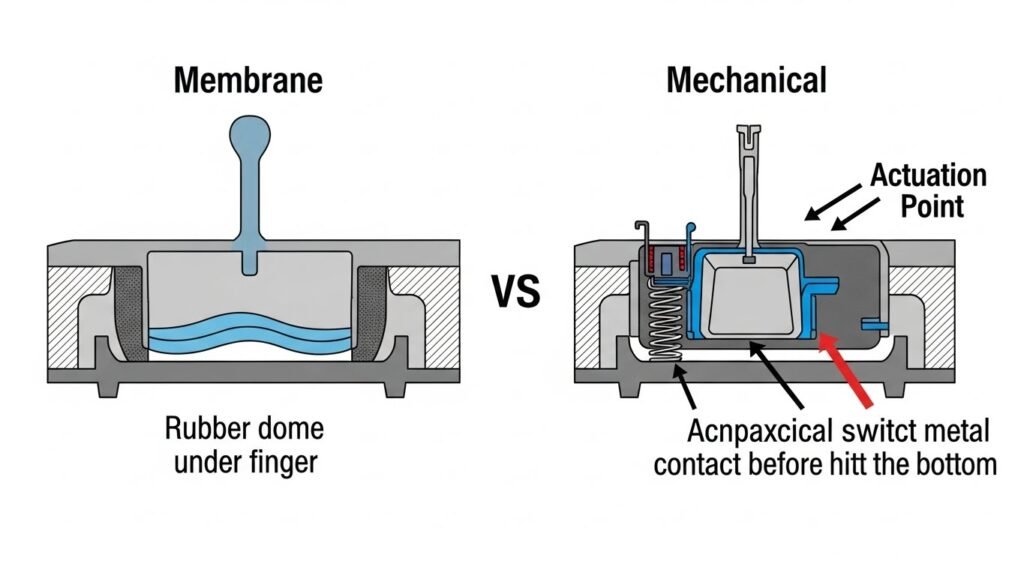
To understand the hype, you need to understand the engineering. Most cheap keyboards use a “rubber dome” sheet. When you press a key, you are squishing a piece of rubber until it touches a circuit sheet. It feels mushy and inconsistent, and it requires you to “bottom out” (press the key all the way down) to register a letter.
A mechanical keyboard uses a physical switch for each key.
Precision and Speed
With a mechanical switch, the keystroke registers before you hit the bottom. This is known as the “actuation point.” Once your fingers learn this point, you can type faster and with less force, as you are essentially “gliding” over the keys rather than pounding them.
Durability
A standard membrane keyboard is rated for about 5 to 10 million keystrokes. A mechanical switch is typically rated for 50 to 100 million. For a programmer writing thousands of lines of code, this durability difference is massive. A good mechanical board can easily last 10 to 15 years.
The “Feel” (Haptics)
This is subjective but crucial. The satisfying “click” or “thump” confirms that you have pressed the key. This reduces typos because your brain receives physical confirmation for each letter, reducing the need to constantly check the screen for missed inputs constantly.
Decoding the Switches: Red, Blue, and Brown
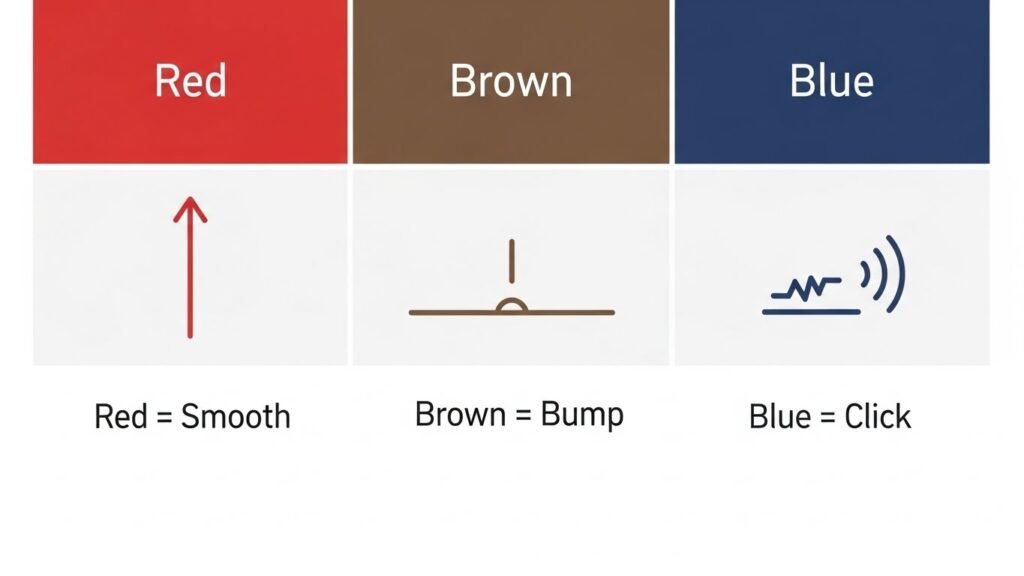
The heart of the keyboard is the switch. When shopping, you will see colors referenced constantly. These colors (standardized initially by a company called Cherry MX) dictate how the key feels and sounds.
Blue Switches (Clicky)
- Feel: Tactile bump + Loud Click.
- Sound: Very Loud (like a typewriter).
- Best For: Solo typists who love auditory feedback.
- Avoid if: You work in an open office or have roommates. You will annoy them.
Red Switches (Linear)
- Feel: Smooth, straight down, no bump.
- Sound: Quiet.
- Best For: Gamers and fast typists who want zero resistance.
- The IT Angle: Some coders find them too sensitive, leading to accidental key presses, but they are great for reducing finger fatigue.
Brown Switches (Tactile)
- Feel: A subtle bump halfway down, but no loud click.
- Sound: Moderate/Quiet.
- Best For: The perfect middle ground for office work.
- The IT Angle: Widely considered the best starter switch for programmers. You feel the actuation, but you won’t get fired for noise pollution.
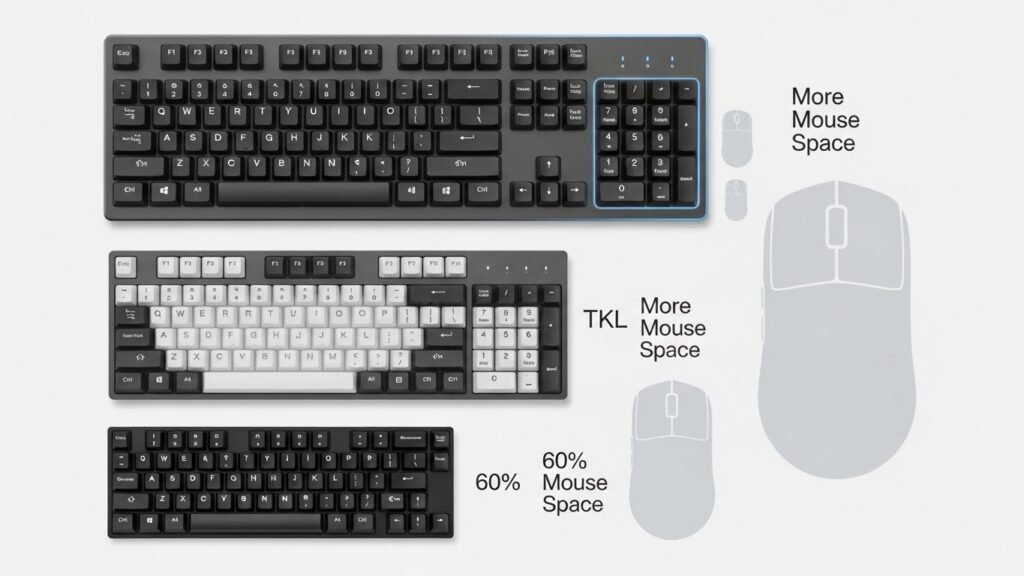
Size Matters: Form Factors Explained
In the IT world, desk real estate is valuable. Do you really need that number pad on the right side of your keyboard?
Full Size (100%)
- Layout: Standard layout with Numpad.
- Best For: Data analysts, sysadmins who frequently type IP addresses, or anyone who uses Excel heavily.
Tenkeyless (TKL / 80%)
- Layout: No Numpad.
- Best For: Most programmers.
- Why: Removing the Numpad allows you to move your mouse closer to your body. This improves ergonomics by keeping your arms at a more natural shoulder width, reducing strain on your right shoulder.
Compact (60% – 65%)
- Layout: No Numpad, no Function row (F1-F12), sometimes no arrow keys.
- Best For: Minimalists, writers, and code-editors (like Vim users) who use keyboard shortcuts for everything.
- The Learning Curve: You access missing keys (like F5) by holding a “Function” (Fn) key. It takes a week to get used to, but it saves massive amounts of desk space.
Ergonomics and RSI Prevention
Repetitive Strain Injury (RSI) and Carpal Tunnel Syndrome are career-enders for IT professionals. Mechanical keyboards can help mitigate these risks, but only if chosen correctly.
The Problem with Flat Boards
Standard keyboards force your wrists to twist flat, which compresses the nerves. Mechanical keyboards are often taller, which can actually worsen this if you don’t use a wrist rest.
Split Keyboards
For the ultimate ergonomic setup, consider a “Split” mechanical keyboard. These are cut in half, allowing you to place the left and right halves at shoulder width. This keeps your chest open and wrists straight. It looks like a spaceship control panel, but your joints will thank you after a 10-hour coding marathon.
Key Pressure (Actuation Force)
If you have weak fingers or pain, you can buy switches with lighter springs (e.g., 35g or 45g). This means you barely have to touch the keys to type, significantly reducing the muscular effort required for a full day of work.
Customization: The “Rabbit Hole”
One warning: mechanical keyboards are addictive. Once you buy one, you enter a world of customization.
Keycaps
You can replace the plastic caps on your switches. Want a “Matrix” theme with green-on-black characters? Want a retro “Commodore 64” look? You can buy high-quality PBT plastic keycaps that never get shiny or oily over time (unlike cheap ABS plastic).
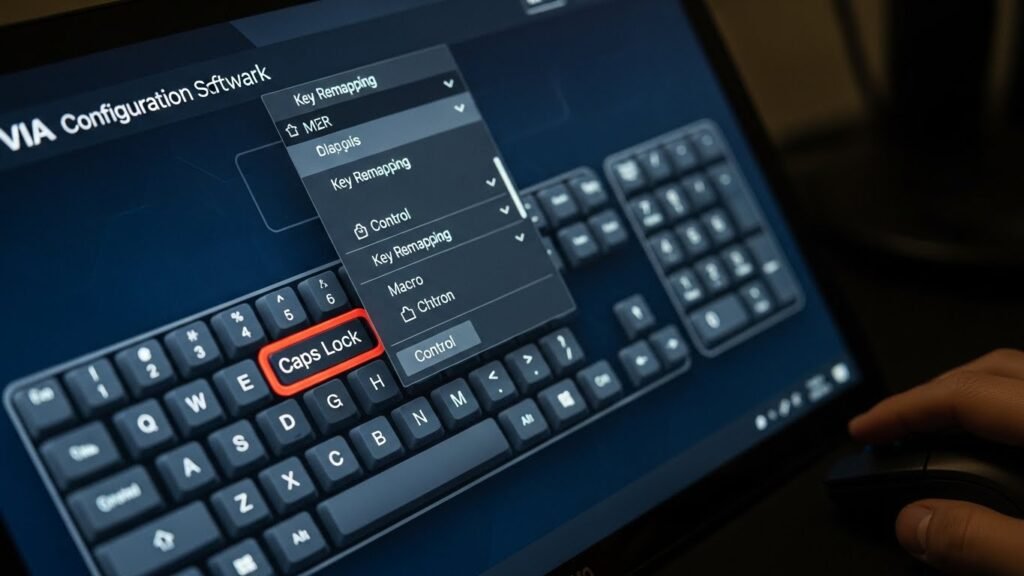
Programmability (QMK/VIA)
Many enthusiast keyboards support software like QMK or VIA. This allows you to reprogram the board at the hardware level.
- Example: You can make the Caps Lock key act as a “Back” button.
- Example: You can program a macro so that one key types out your entire email signature or a common Git command (git commit -m).
Top Recommendations for 2026
If you are ready to buy, here is a quick cheat sheet based on your needs.
The Budget Entry ($50 – $80)
- Keychron C-Series or Royal Kludge: These brands offer incredible value. You get wireless connectivity, hot-swappable switches (so you can change them without soldering), and a solid build quality for the price of a standard office keyboard.
The Professional Workhorse ($100 – $150)
- Keychron K-Pro or V-Series: Widely regarded as the best value in the industry. They work perfectly with both Mac and Windows, have excellent battery life, and sound fantastic out of the box.
The “Buy It For Life” ($200+)
- HHKB (Happy Hacking Keyboard) or Custom Builds: The HHKB uses “Topre” switches (electro-capacitive), which feel like popping premium bubble wrap. It is a cult classic among Linux kernel developers and senior engineers.
Conclusion
Your keyboard is your primary interface with the digital world. You wouldn’t run a marathon in flip-flops, so why write code on a $10 membrane board?
A mechanical keyboard offers a better typing experience, faster input speeds, and improved ergonomics. Whether you choose a clicky Blue switch for your home office or a silent Red switch for the corporate bullpen, the upgrade will make every email, script, and line of code feel just a little bit more satisfying.
Start with a simple “Hot-swappable” board. This allows you to experiment with different switches without buying a whole new keyboard. Welcome to the club—your fingers will never want to go back.