
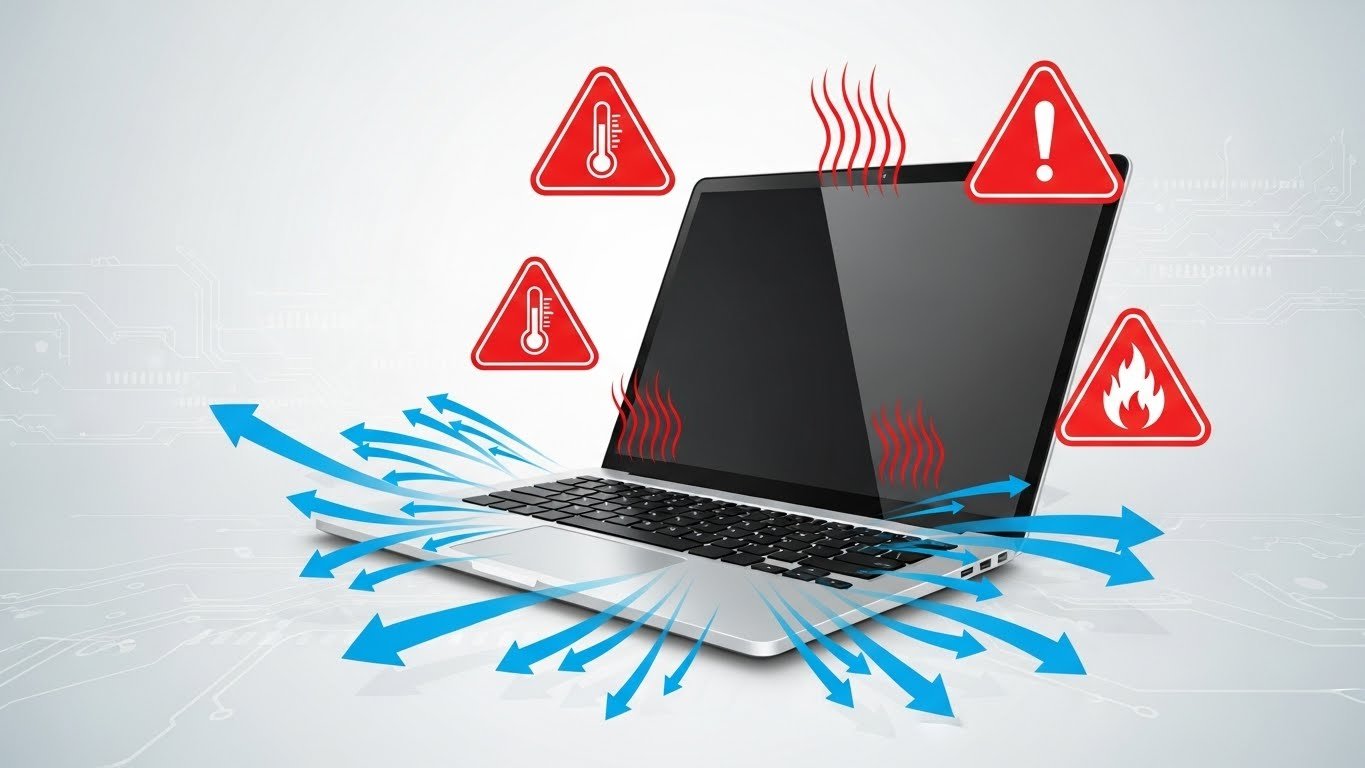
Laptop overheating is a very common problem, especially in 2026 as devices become thinner and more powerful.
Excessive heat can slow down performance, damage internal components, and shorten battery life.
In this guide, you’ll learn practical and effective ways to reduce laptop overheating and keep your device cool and healthy.
Why Do Laptops Overheat?
Before fixing the problem, it’s important to understand the causes.
Common reasons include:
- Dust buildup inside the laptop
- Poor airflow
- Heavy background applications
- Old thermal paste
- Using the laptop on soft surfaces
1. Clean Dust from Vents and Fans
Dust blocks airflow and traps heat inside the laptop.
What you should do:
- Turn off and unplug the laptop
- Use compressed air to clean vents
- If possible, clean internal fans once a year
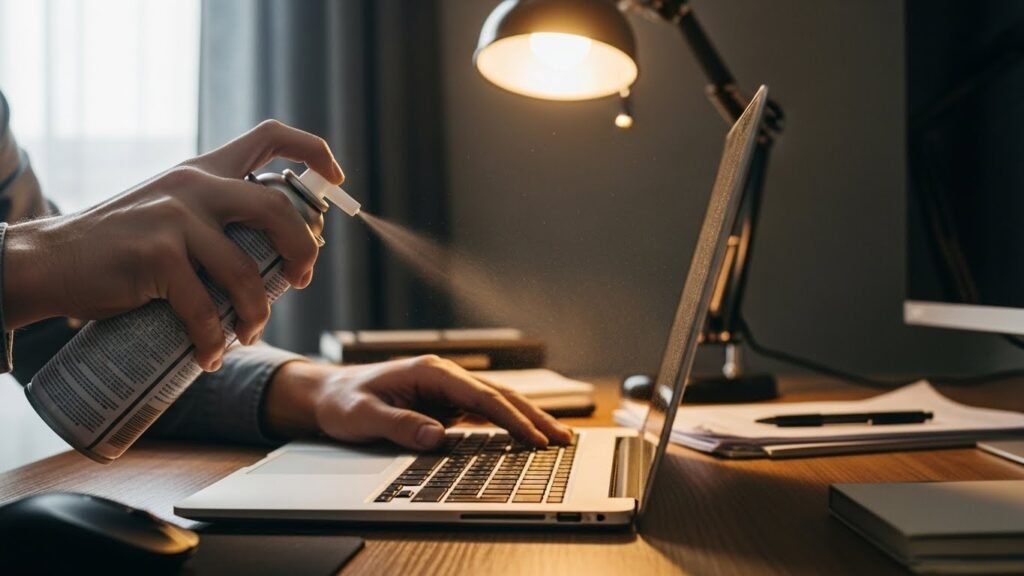
✅ Result: Improved airflow and lower temperature
2. Avoid Using Laptop on Bed or Sofa
Soft surfaces block ventilation holes.
Best surfaces to use:
- Flat desk or table
- Laptop stand
- Cooling pad
👉 Always ensure proper airflow from the bottom.
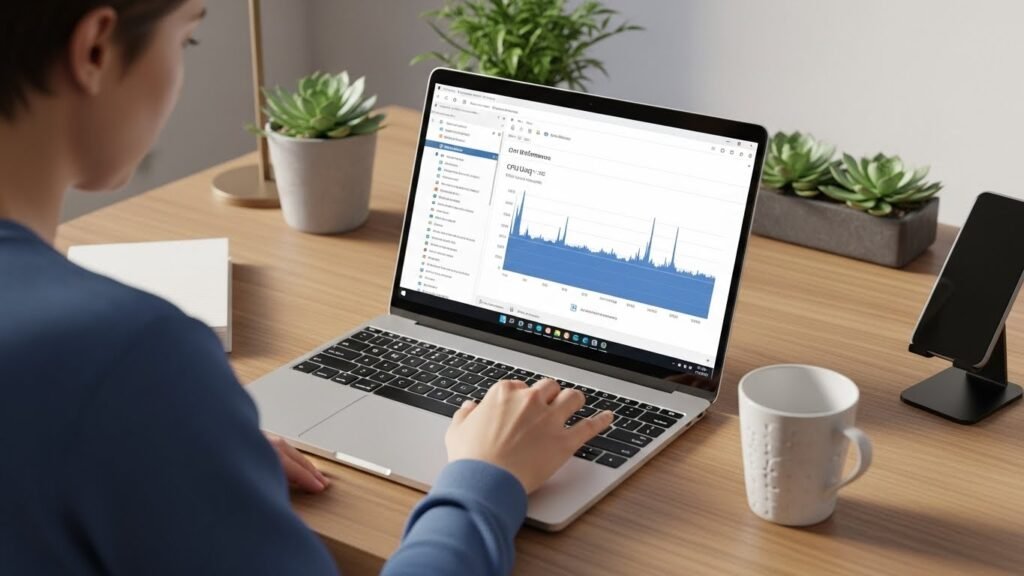
3. Close Heavy Background Programs
Running too many apps increases CPU and GPU load.
How to check:
- Open Task Manager
- Close unnecessary apps
- Avoid running multiple heavy programs together
4. Update Drivers and Operating System
Outdated drivers can cause inefficient hardware usage.
Keep updated:
- Graphics drivers
- BIOS (only if recommended by manufacturer)
- Windows or macOS updates
⚠️ Avoid unofficial driver sources.
5. Use Power Saver or Balanced Mode
High-performance mode increases heat.
What to do:
- Go to Power & Battery settings
- Select Balanced or Power Saver
- Reduce screen brightness
This can significantly lower heat during normal use.
6. Replace Thermal Paste (Advanced Users)
Old thermal paste loses efficiency over time.
When to replace:
- Laptop is 3–4 years old
- Fan noise is high
- Temperatures remain high after cleaning
👉 Best done by a professional technician.
Bonus Tips to Keep Your Laptop Cool
- Use a cooling pad
- Keep room temperature moderate
- Avoid gaming on soft surfaces
- Shut down the laptop when not in use
Final Verdict
Laptop overheating is not something you should ignore.
By following these simple steps, you can:
- Reduce heat
- Improve performance
- Extend your laptop’s lifespan
A cooler laptop is a faster, safer, and more reliable laptop.