
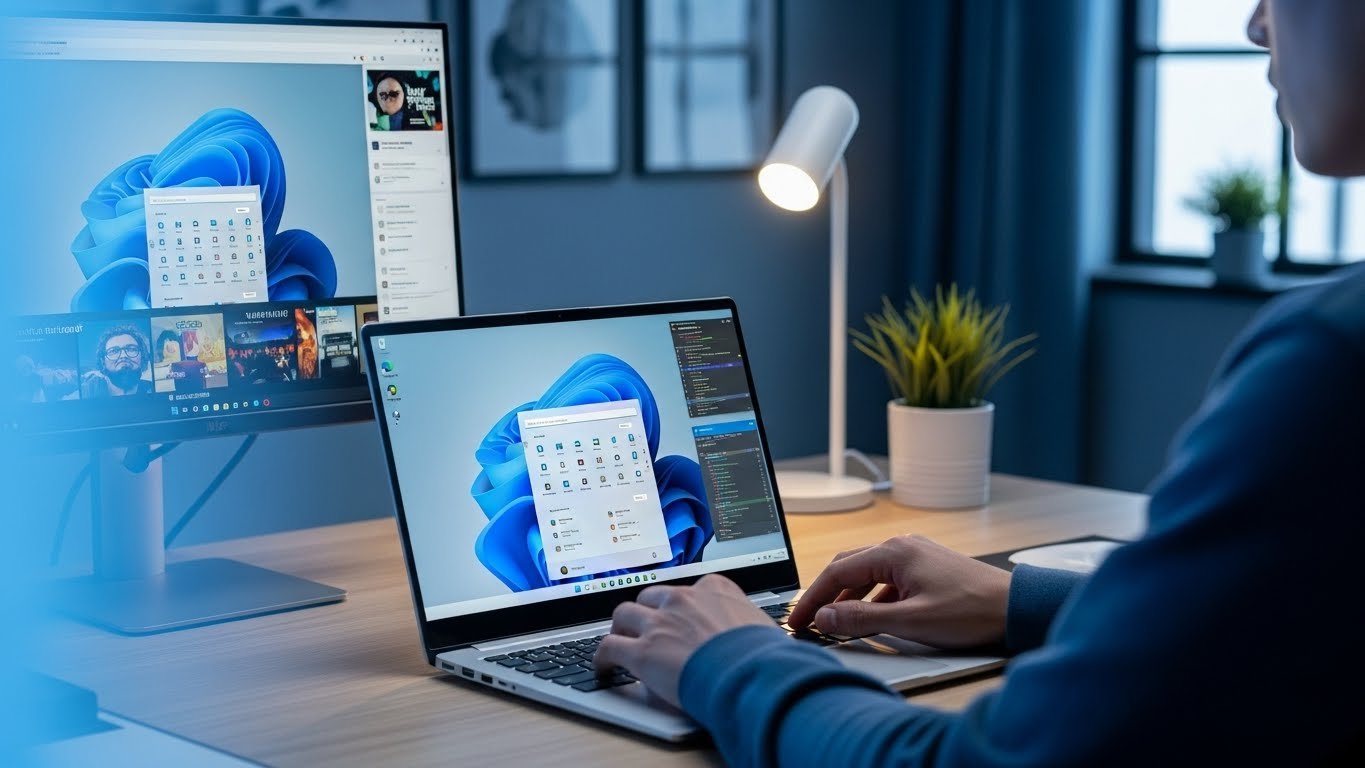
Is your Windows 11 PC running slow, lagging, or taking too long to start?
This is a common problem for many users in 2026.
The good news is—you don’t need expensive software or a new computer.
With the right settings, you can speed up Windows 11 easily and safely.
1. Disable Unnecessary Startup Programs
Too many startup apps slow down your PC as soon as it turns on.
How to disable them:
- Press Ctrl + Shift + Esc
- Open the Startup tab
- Disable apps you don’t need (music apps, launchers, etc.)
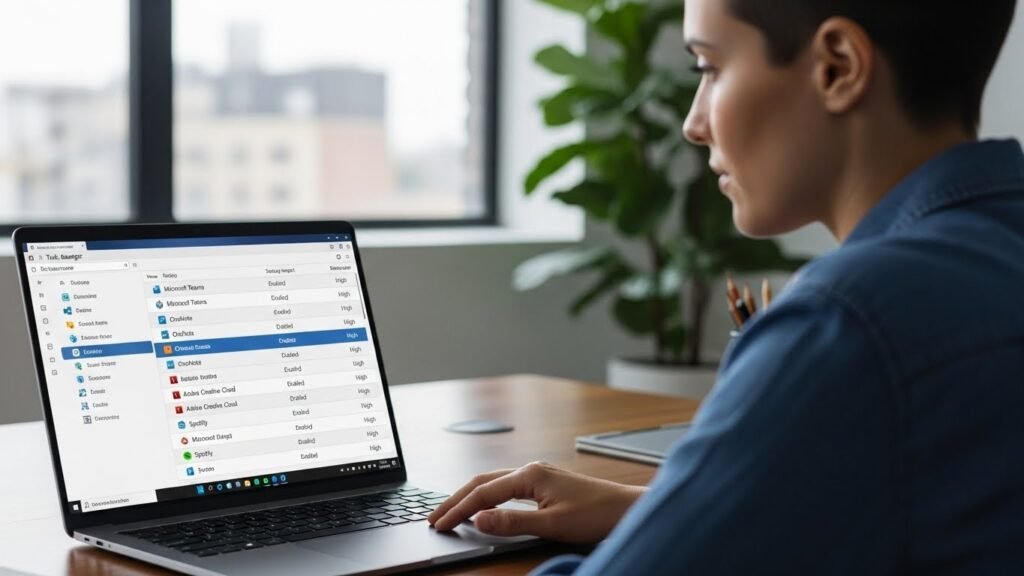
✅ Result: Faster boot time and smoother performance
2. Reduce Visual Effects and Animations
Windows 11 animations look great but use system resources.
Steps:
- Press Windows + R
- Type
sysdm.cpland press Enter - Go to Advanced → Performance → Settings
- Select Adjust for best performance
You can manually re-enable only the effects you like.
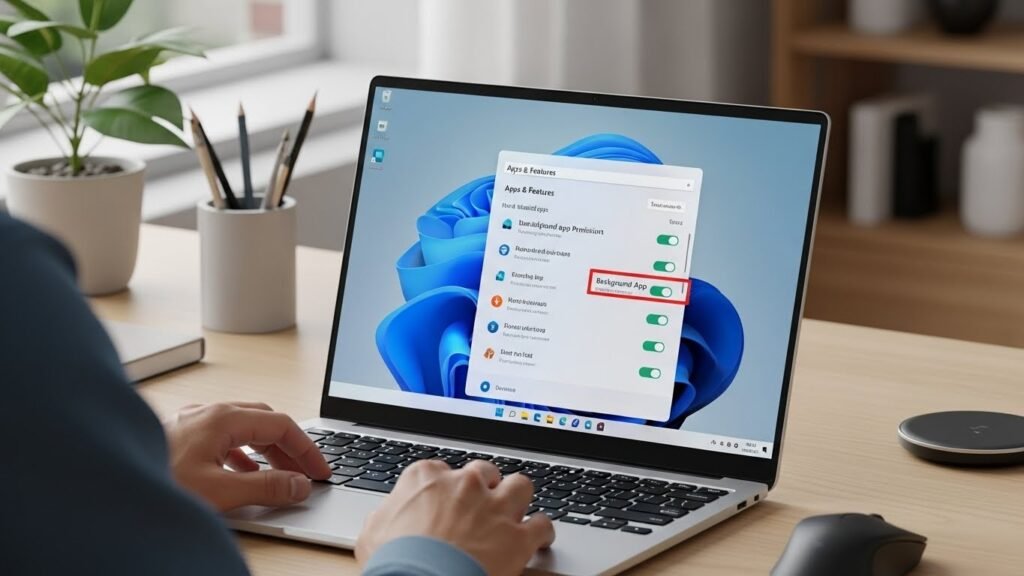
3. Remove Unused Apps and Background Processes
Many apps continue running in the background even when you don’t use them.
What to do:
- Open Settings → Apps → Installed apps
- Uninstall apps you no longer need
- Limit background activity for heavy apps
4. Free Up Disk Space
Low storage can seriously slow down Windows 11.
Quick fixes:
- Enable Storage Sense
- Delete temporary files
- Clear Recycle Bin
- Remove large unused files
👉 Path: Settings → System → Storage
5. Keep Windows 11 Updated
Microsoft regularly releases updates that improve performance and security.
- Go to Settings → Windows Update
- Install stable updates only
- Restart your PC after updating
⚠️ Avoid preview or beta updates on low-end PCs.
6. Upgrade to an SSD (Biggest Boost)
If your PC still uses an HDD, upgrading to an SSD makes a huge difference.
Benefits:
- Faster boot time
- Faster app loading
- Much smoother overall experience
Final Tips to Keep Windows 11 Fast
- Restart your PC weekly
- Avoid cracked or heavy software
- Keep at least 20% free storage
- Use a lightweight antivirus
Final Verdict
A slow Windows 11 PC is usually caused by poor settings, not weak hardware.
By following the steps above, you can speed up Windows 11 in 2026 and enjoy a faster, smoother system without spending money.